


Logo Envelopes
Elevate your brand identity with our logo envelopes. Customized with your company logo, these envelopes make a lasting impression on recipients. Explore our range of logo-printed envelopes to add a professional touch to your correspondence. read more...Calculating your
best price and options...
Choose your Logo Envelopes
Size is measured in inches (except for Banners).
Your artwork must be submitted in this size plus bleed. For more information please go to Bleed & Safe Area.
If your product includes folding, this is the size before folding.
Catalogs/Magazines and Calendars are not considered folded products. Their size refers to one page.
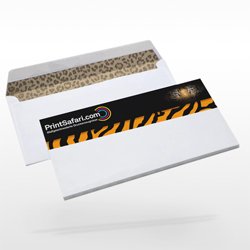
Custom Envelopes
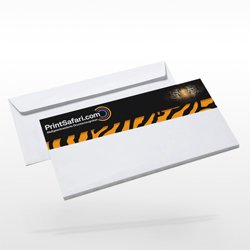
Logo Envelopes
Calculating your
best price and options...
Choose Attributes
Size is measured in inches (except for Banners).
Your artwork must be submitted in this size plus bleed. For more information please go to Bleed & Safe Area.
If your product includes folding, this is the size before folding.
Catalogs/Magazines and Calendars are not considered folded products. Their size refers to one page.
Each paper we offer is a good choice for the product. You often have the option between lighter and heavier papers. Papers also come with different coatings.
For more information, see our Paper Guide.
Note that some papers increase production time, as listed in Turnaround Times.
4/1 = Full color on front, B/W on the back.
4/4 = Full color on both sides.
1/0 = B/W on front, blank back.
0/0 = Blank
The quantity you select here is for one design only. To print several artworks you must add several items to the cart.
You can change the item quantity in the cart, if you want the same product for multiple designs.
High quantities may increase production time as listed in the category description or in Turnaround Times.
Production time depends on the product. You can find production times for this category in the description below (including additional turnaround times).
For your specific product's production time, please complete your filter selection or go to the product page — however you will have to add the additional turnaround times to these, too.
Please note:
Production starts on the day we have received your print-ready files before 10 AM EST (including your confirmed proofs, if any).
See Turnaround Time for more information.
Production time does not include shipping.
See Shipping for more information.

Logo on Envelope Printing
People can now easily complete various jobs that were previously only performed by professionals because of the accessibility of personal computers and color printers. Custom envelopes are simple to create and print envelopes for anyone with a computer and Microsoft Word.

Logo on envelope? How?
Personal and professional letterhead customization requires minimal time or talent and yields sophisticated results. You may easily include a logo in your envelopes. Place your pointer to the left of the envelope's mailing address. Choose the image from the insert box. From Dialog
Choose your logo on the envelope design from the dialog box and press the "Insert" option to add it to the top left side of the envelope where you place your pointer. If the logo is too huge or too small for the envelope, drag one of its edges to adjust it. To access the "Format" tab on the toolbar, twice click the logo. To view a drop-down option of multiple picture placements and word wrapping choices, click the "Position" option.
To exactly align the logo with the mailing address on the top left side of the envelope, use the "Upper left with square font wrapping" setting. If you wish to put the logo somewhere next to the mailing address text, choose "More Options" from the Position tab and "In Front of Text." To export the document containing the envelope, go to the File tab and click "Save As."
How to print a design or logo on an envelope?
Start a fresh blank document in Microsoft Word. From the top of the window, select "Tools," next "Letters and Mailings," and finally, "Envelopes and Labels. "In the relevant boxes, provide your return and recipient's addresses." Format the text to match the envelope's design style using your chosen Font and color. Insert a logo or graphic inside the envelope by selecting "Insert," then "picture," and then select a file from your computer.
Choose "Layout" and then the option "In Front of Text." You may now use your cursor to choose the image you placed and drag it to any location on your envelope. To see how the envelope will appear when printed, press "Select View" and then "Print Layout."
Return if required to make adjustments to the envelope to your desire. Insert an envelope into your printer, click "File," then "Print." Make your print settings options and then click "OK."


How to personalize an envelope?
To customize and print an envelope using the Word Envelopes feature, do the following:
Navigate to the Mailings option. Choose Envelopes from the Create category. Click on the Envelopes tab in the Envelopes and Labels dialogue box, then input a Mailing address and a Postal address. To modify the appearance of the envelope, enter the Envelope Options dialogue box by selecting Options.
To alter the envelope size, navigate to the Envelop tab, click the Envelope size drop-down arrow, and pick a custom size. To use an alternative typeface for the mailing or postal address, open the Envelope Address dialogue box and pick Font. Select a typeface and click OK. Click on the Printing Options tab to customize how the envelope is printed.
To determine the direction to position the envelope, open the Envelopes and Labels dialogue box, click the Envelopes tab, and then look at the Feed section in the lower-right corner of the window. The Feed instructs you on how to load the envelope. Select Print from the Envelopes and Labels dialogue box and print it.

How to make an envelope template?
To make an envelope template, start with a freshly blank file to which you wish to add an envelope. Choose the "Mailings" tab. To launch the Envelopes and Labels dialogue box, choose "Envelopes" in the Create box. To enter the Envelope dialogue box, click the "Options" button. Select the design size for the envelope you wish to print by clicking the pointer in the Envelope Size box. If there is no template design for your desired envelope size, click "Custom Size" and input the envelope specifications. To select a custom text, font style, or font color for one or both locations, click the "Font" option in the mailing or postal address box. When you're finished, click "OK." Incorporate the envelope template into the file.
How to create a custom-size envelope in word?
Follow these guidelines to make a custom envelope size in Word: Open a file and click on Letters and Mailings on the toolbar, then select an option of Envelopes and Labels. Select Options on the Envelopes menu. Now, select Envelopes in the Create group on the Mailings menu, and afterward, Options in the Envelopes and Labels dialogue box to access the Envelope Options dialogue box.
Open the Envelope size box on the Envelope Options tab, then choose a Custom size.
Adjust the Width box to the desired envelope width, the Height box to the desired envelope height, and then click OK in the Envelope Size dialogue box.


How to print addresses on the envelope?
To print an address on an envelope, continue with the pre-written letter that will be set in the envelope. On the Ribbon, click the Mailings tab. Select Envelopes from the Create group to open the Envelopes and Labels dialogue box. Then enter the receiver’s address in the Shipping address area. Enter the sender's address in the Mailing address area (return and delivery addresses). Select the Omit option when you don't wish to print a return address on the envelope. To select the size of an envelope and other printing options, click on Options. Choose a size similar to your envelope from the menu bar in the Envelope Options window.
Slide to the bottom of the drop-down list and select Custom size to pick your size. Fill in the boxes with the length and width of the envelope. Navigate to the Printing Options tab. Word displays the right feed mechanism based on information from the printer control panel. If the feed method varies from the standard advised by Word, choose it from the thumbnails.
Navigate to the Envelopes tab by clicking OK. Choose Add to Document. Word prompts you if you need to save the mailing address you provided as the default return address. If this is your regular address for sending letters, choose Yes. This address and the postal address can be changed at any time. Word creates and displays a file on the left with your envelope and a blank page for the letter on the right. Complete the letter on the blank page. You can alternatively write the letter first, followed by the envelope. Return to Mailings, then go to Envelopes, then Labels and Envelopes. To send both the envelope and the letter to the printer, click Print.
Does word have an envelope template?
Microsoft Word comes with dozens of envelope templates from which to create and print personalized envelopes. If you have the right software downloaded on your computer, you may use the template to include a receiver and return addresses and electronic postage.

How to make customized envelopes and labels in word?
Start with a new file or the file to which you wish to add an envelope. Choose the "Mailings" tab. To launch the Envelopes and Labels dialogue box, click "Envelopes" in the Create group. To enter the Envelope Options dialogue, click the "Options" button. Select the template size for the envelope you wish to print by clicking the pointer in the Envelope Size box. If there is no template for your desired envelope size, click "Custom Size" and input the envelope specifications. To select a custom font, style, or font color for one or both addresses, click the "Font" option in the Postal Address or Mailing Address box. When you're finished, click "OK."
Can you create envelopes using mail merge?
To create an envelope using mail merge, first, Navigate to Mailings, then select the option of Mail Merge, then select Envelopes. Check your settings in the Envelope Options dialogue box, then click OK. If you want to include a return address or a logo on your envelope, now is the chance to do it. Please select a file and then save it.
